

Item Optimization Guide
Overview
The Item Optimization functionality is designed to streamline and enhance your ordering process through Punch Out. This guide provides a step-by-step walkthrough to help you optimize items in your order, ensuring you get the best possible products and prices.
Purpose
The purpose of the item optimization functionality is to:
-
Improve Order Efficiency: By suggesting optimized items, you can quickly modify your order to include the best available options.
-
Enhance User Experience: The process is integrated seamlessly within EPRO, making it easy to review and apply optimization suggestions.
-
Cost Savings: Optimized items often come with better pricing or availability, helping you save on your orders.
Note: To configure this setting for a supplier for your Buyer Group, please submit a ticket to the Tech Support team for next steps.
Step-by-Step Guide
-
Access your Punch Out as you normally would to begin placing your order.
-
Review Optimization Suggestions and Return to the Punch Out Site
-
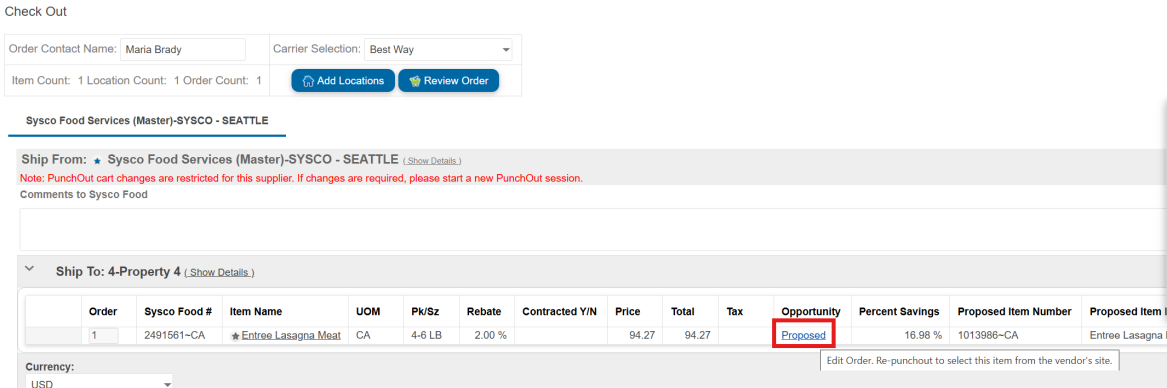
When your cart returns to EPRO, a column will display showing whether any items are eligible for optimization.
-
Tip: Take a screenshot or copy/paste the items on an external document suggested for optimization.
-
Click on blue hyperlink for the word “Proposed” to go back into the Punch Out.
-
-
Locate Your Open Order
-
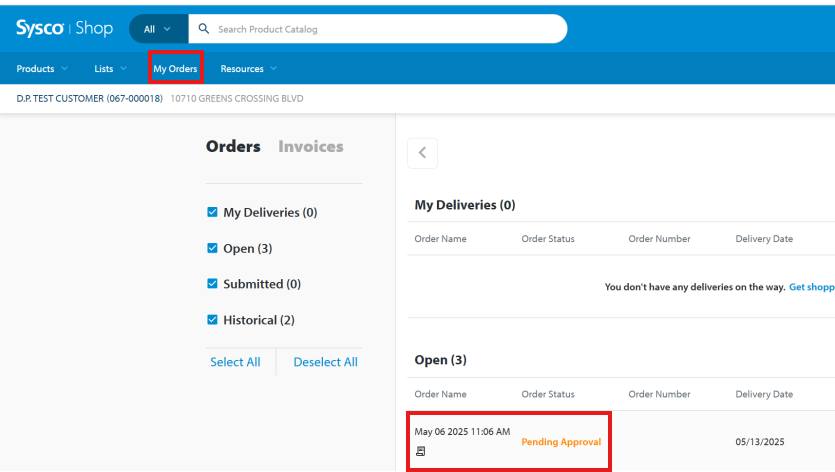
Within the supplier Punch Out, find your open order under the “My Orders” or “Order History” section.
-
Its status should be “Open” or “Pending Approval” depending on the verbiage within the site.
-
Click on the order to begin modifications.
-
-
Modify Your Order
-
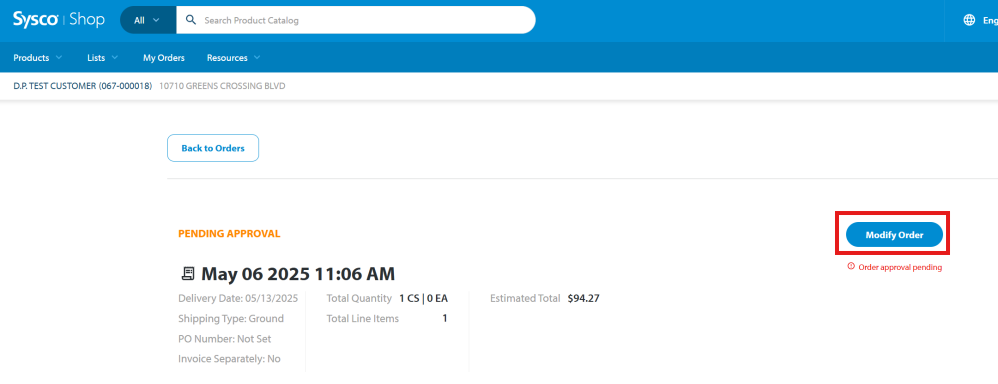
Open the order to modify.
-
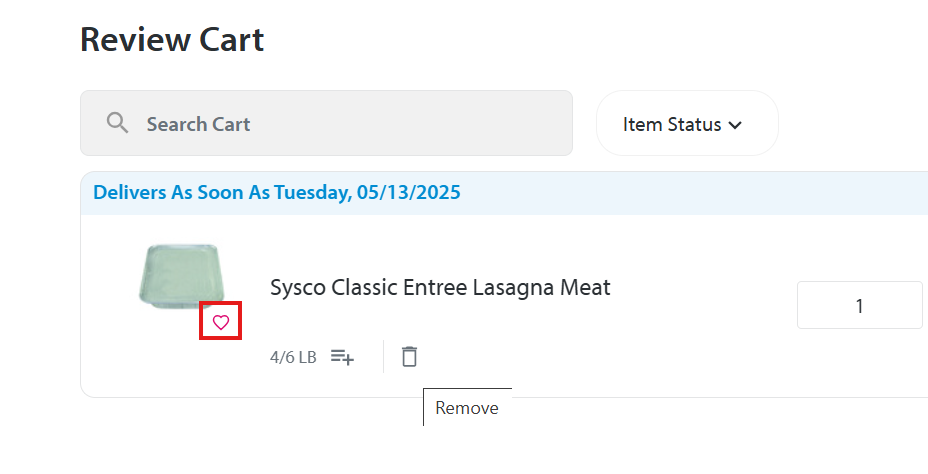
Remove the items you want to switch based on the optimization list.
-
Tip: Remove the item from your Favorites list, if needed.
-
-
Add Optimized Items
-
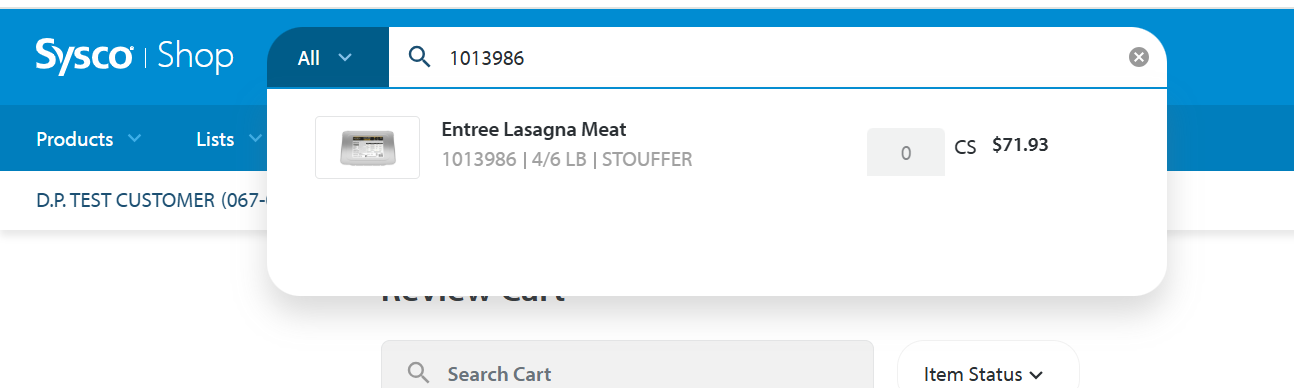
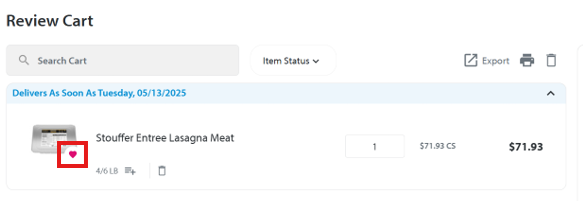
Search for and add the optimized items one by one.
-
Tip: Add it to your Favorites List for future convenience.
-
-
Finalize in supplier Punch Out
-
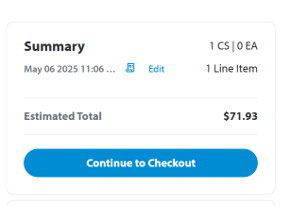
Once all optimized items are added, select “Continue to Checkout.”
-
Your updated cart will return to EPRO.
-
-
Complete Order in EPRO
-
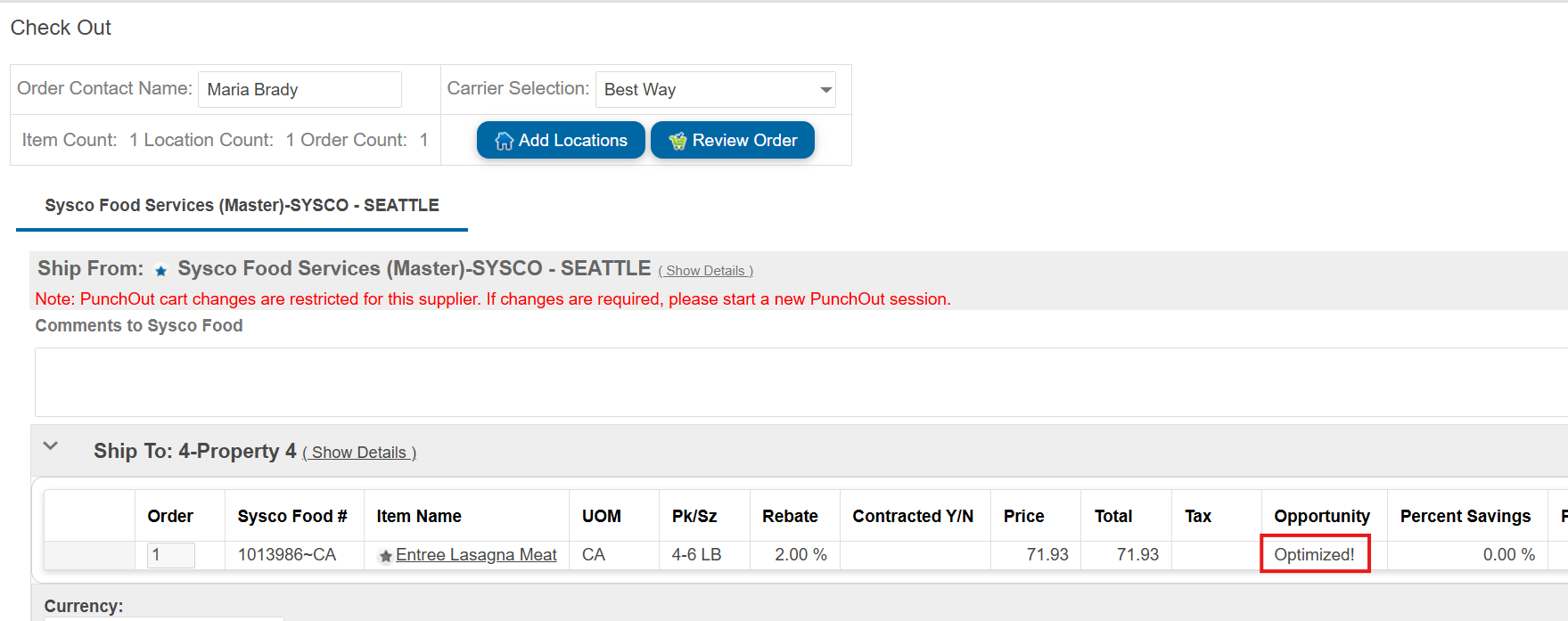
The optimized items will now appear in your EPRO cart.
-
Proceed to finalize your order in EPRO as you normally would.
-
This guide aims to make the item optimization process straightforward and efficient. If you have any questions or need further assistance, please contact our support team.