

We have implemented a technical enhancement that enables drag-and-drop image upload functionality within Invoice Entry, Receiving, and Requisition Forms, including multi-file batch uploads, attachment limits, and appending to existing documents, thereby improving user experience and workflow efficiency.
-
Uploading multiple files will append all pages into one PDF document.
-
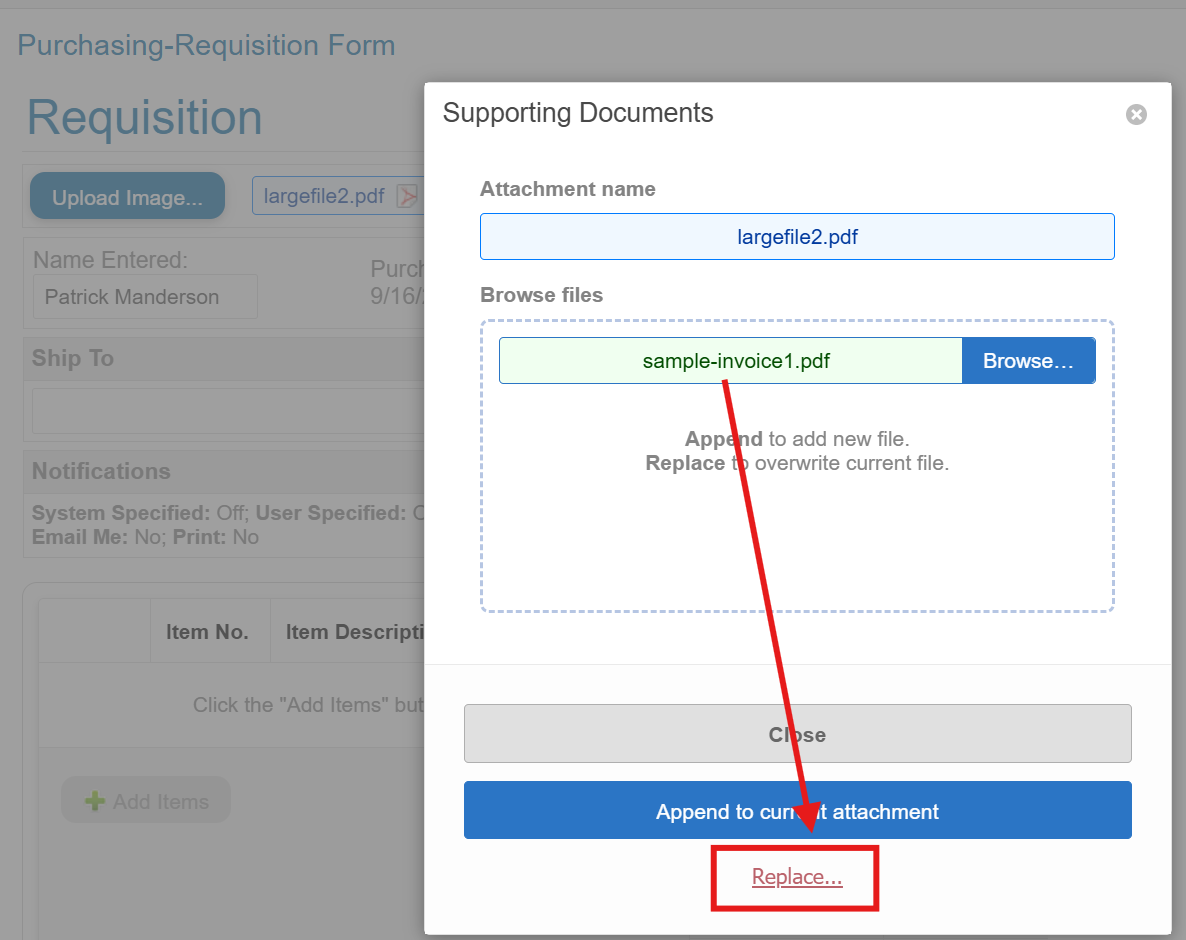
When uploading a new pdf to a record already having an attachment, users have the option to replace the current attachment with the new document.
-
Up to 5 documents can be selected to upload in a batch at a time.
-
A document upload cannot exceed 10mb.
-
The total size of all appended attachments cannot exceed 30mb.
Requisition and Invoice Entry
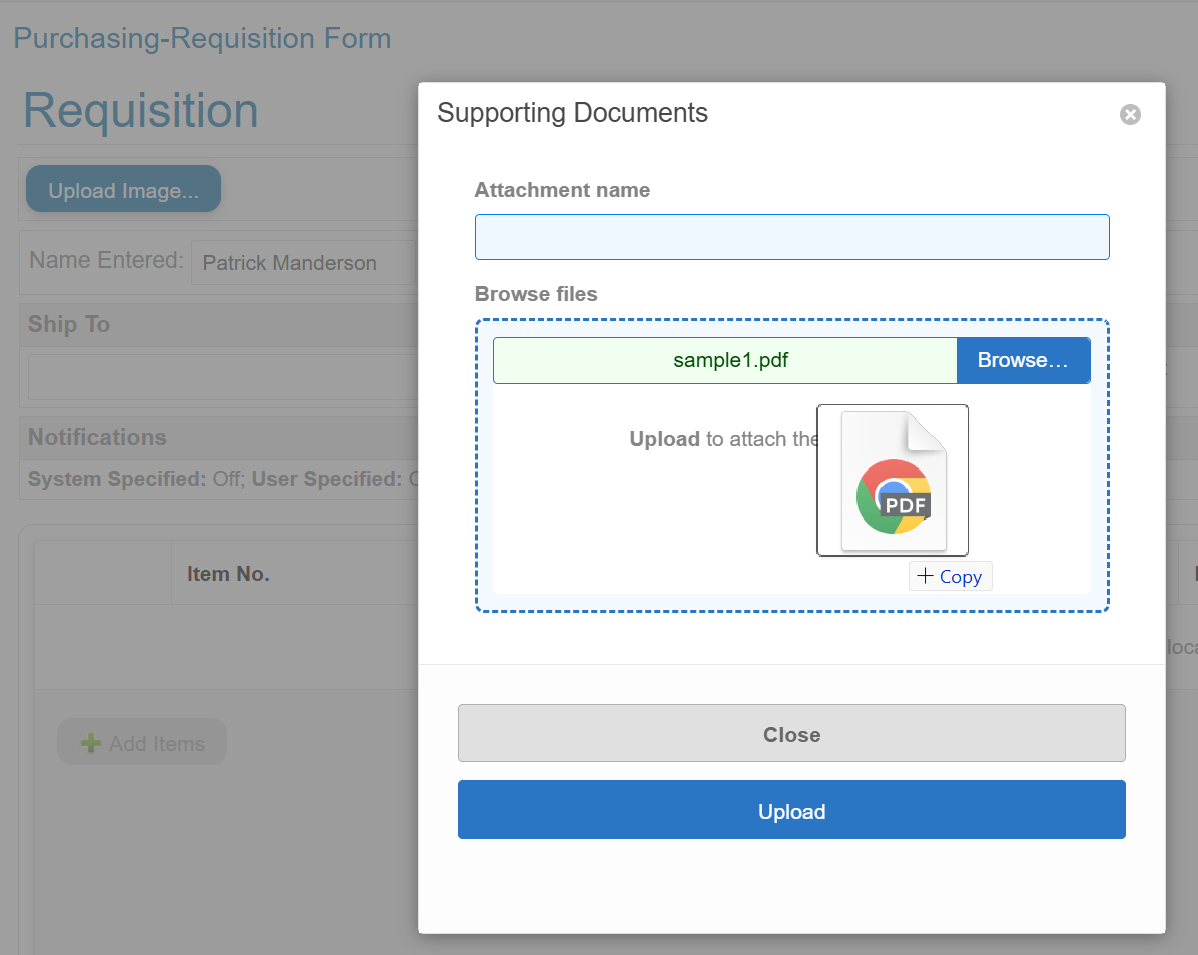
Drag a file within the drop zone marked with a dashed border.
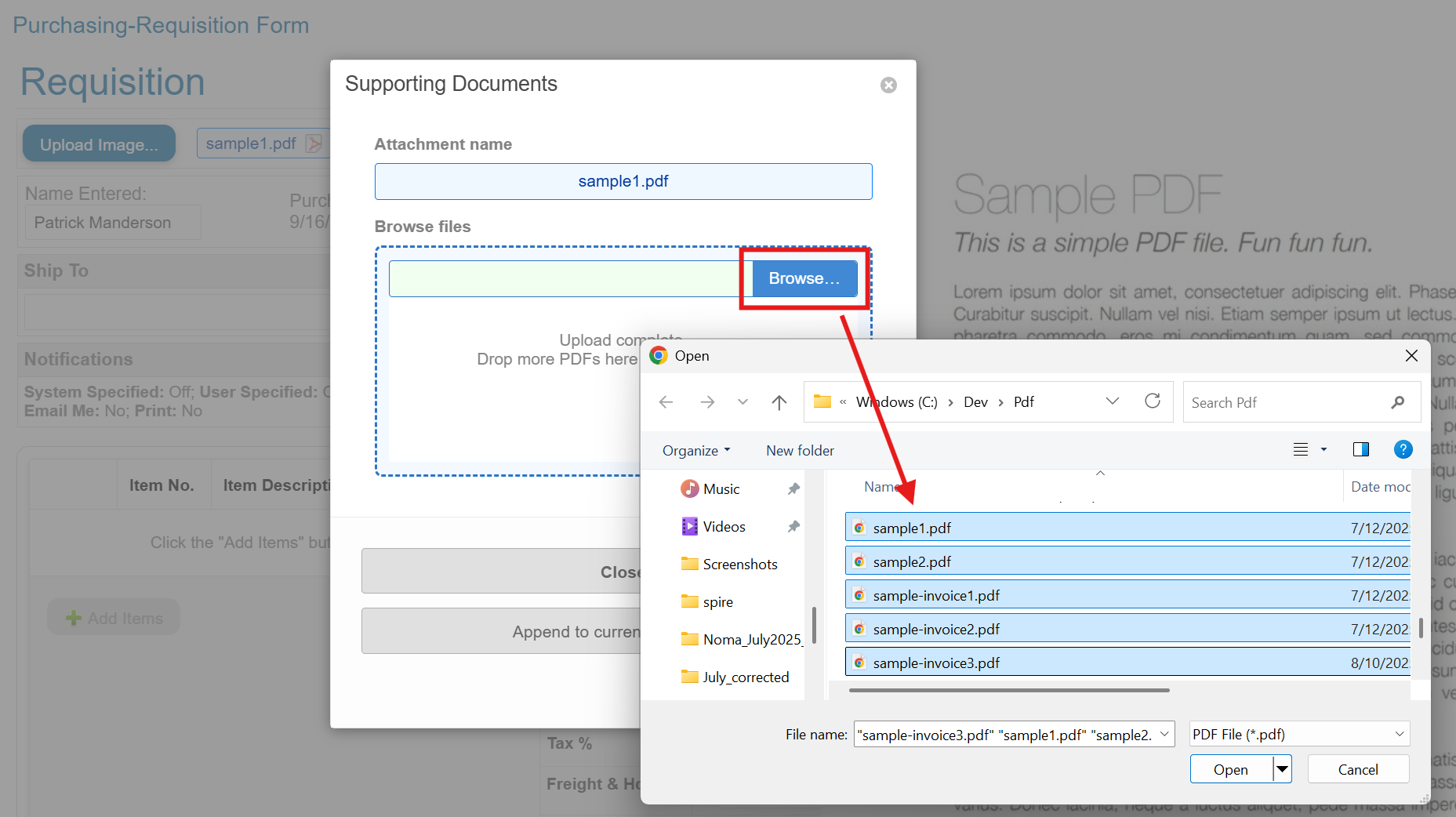
Or instead of dragging files, click the Browse… button and select 1-5 files from the dialog.
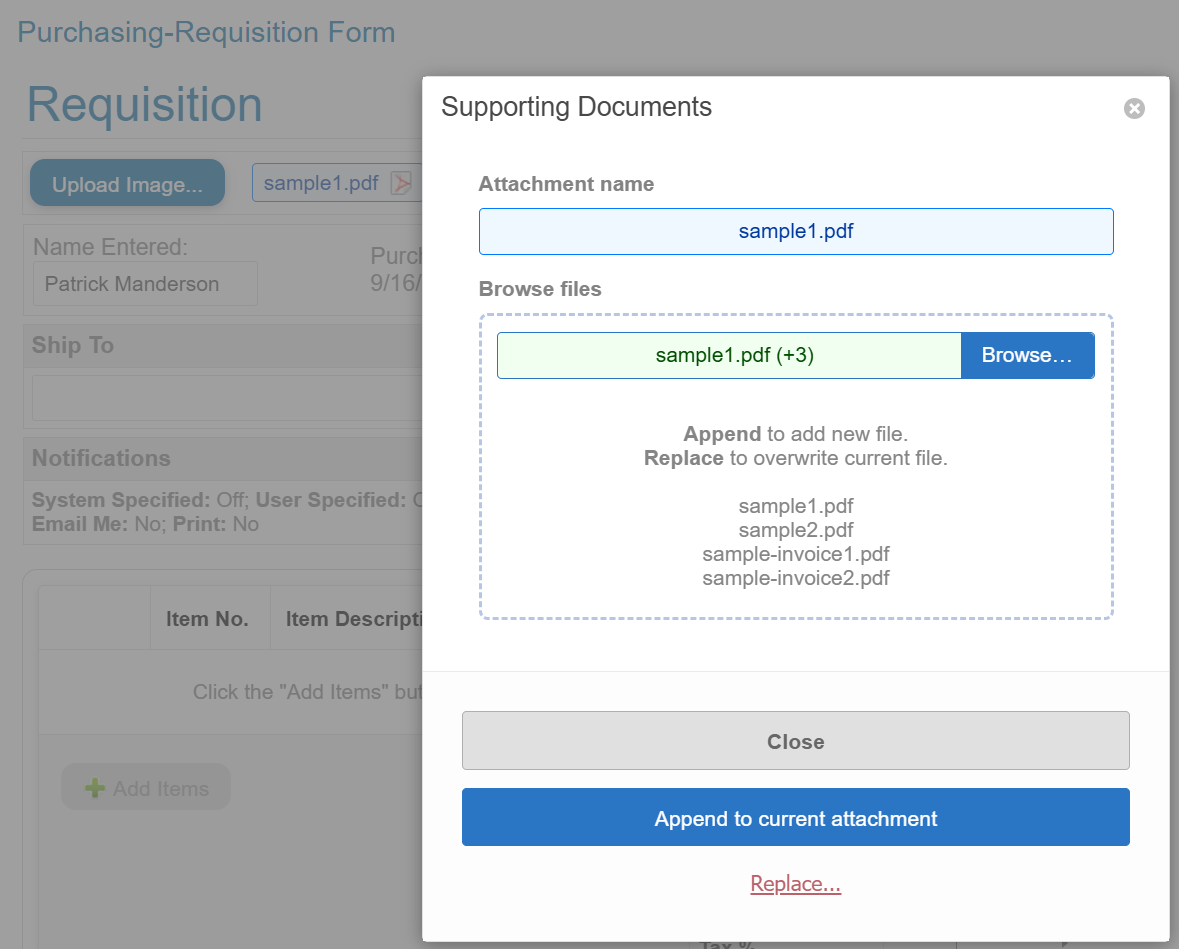
If multiple files are selected, the will be listed in the box below. Click Append to current attachment button to upload the files.
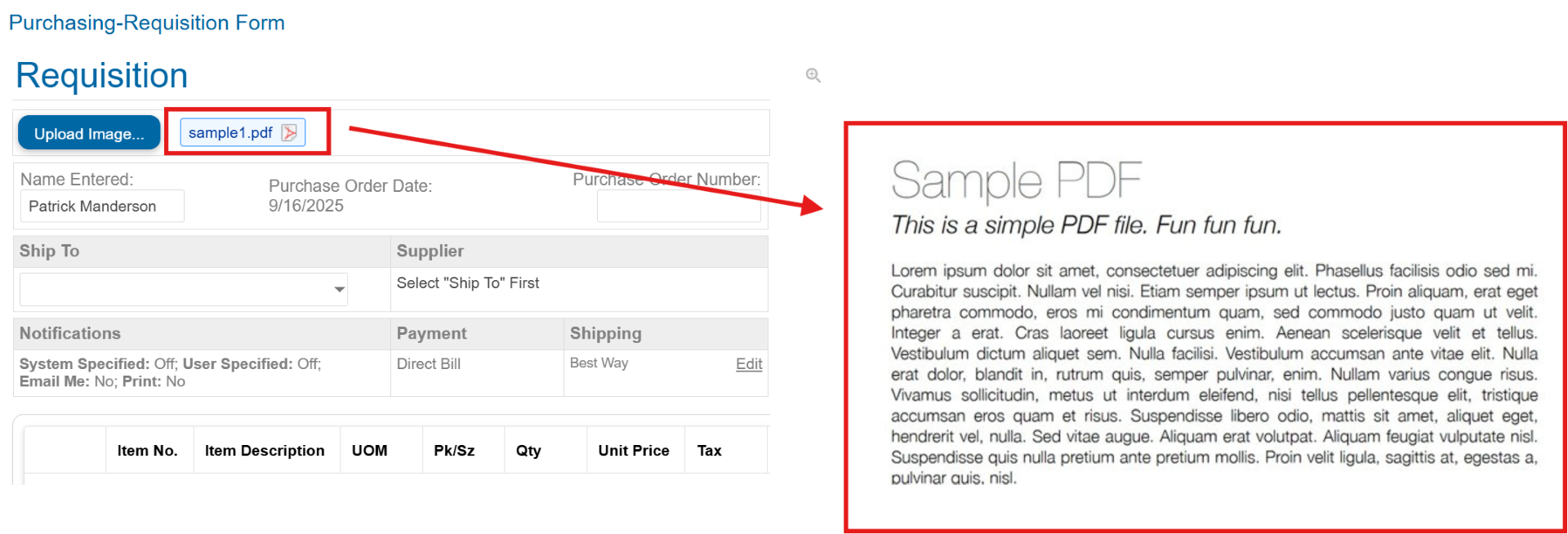
Transactions on the Requisition page show the attachment name. Clicking on it simply refreshes the preview on the left.
-
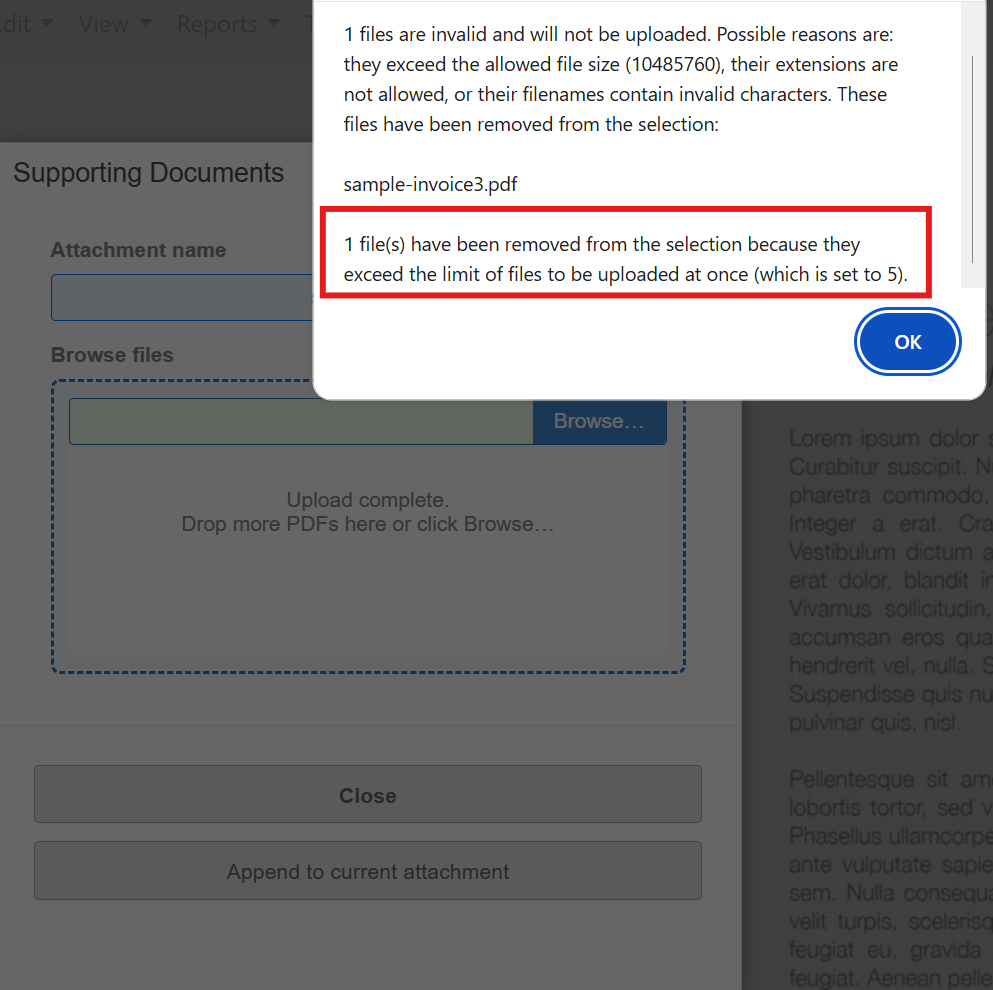
Uploading files in a batch is limited to 5 files at a time.
-
The upper part of this dialog is a generic message. The second part explains the problem specifically after selecting 6 files.
For subsequent uploads to an attachment when one already exists, the Replace option will overwrite the current attachment with the new attachment.
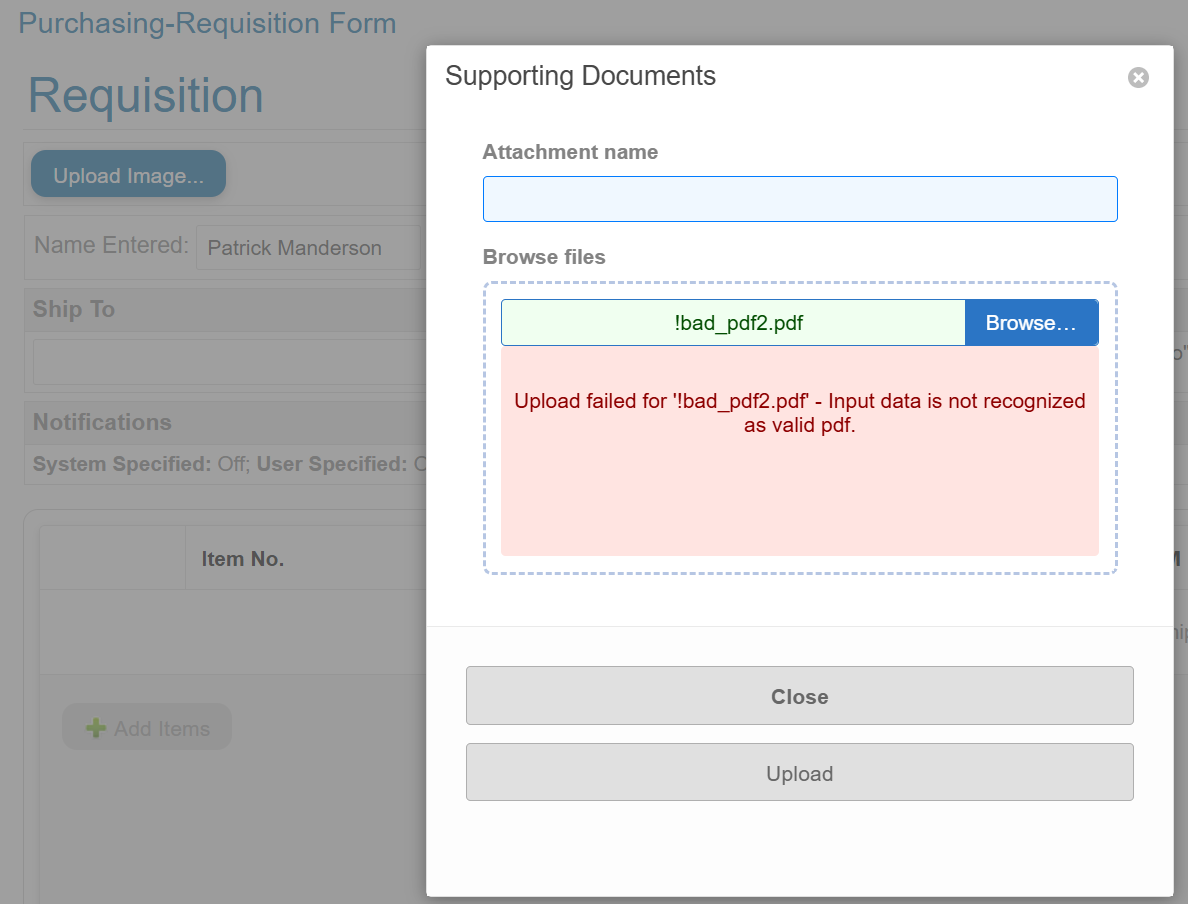
Invalid or corrupt files are rejected. Click Browse to select a new file to upload.
Receiving
On the Receive Invoice screen, clicking on the attachment will download the file.
You may also upload additional files to append to the current attachment.
