

Invoice Entry – Manual – Single Period, Multiple Properties
-
View > Accounting > Invoice Entry
-
Enter the invoice detail following the normal invoice entry process for a single, standalone invoice.
-
For additional help on entering invoice data via Invoice Entry, see: https://help.reactornet.com/docs/Working-version/invoice-entry
-
-
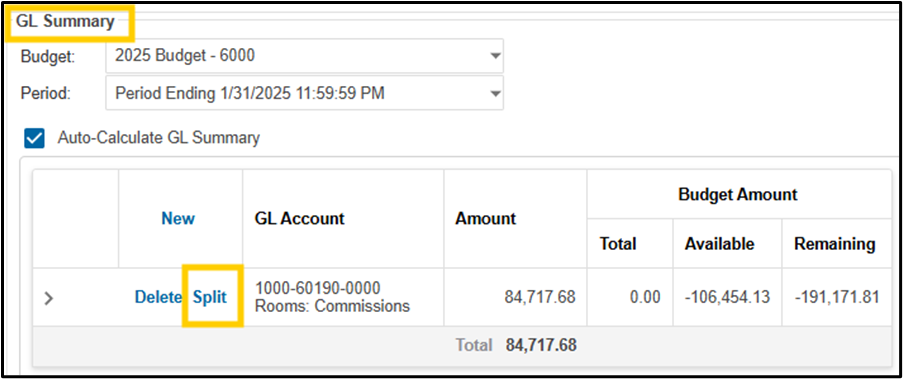
Scroll to the GL Summary portion of the Invoice Entry screen
-
If all applicable settings are in place, a hyperlink will appear next to each GL in the GL Summary called Split
-
Click Split next to the GL needing to be split amongst multiple properties
-
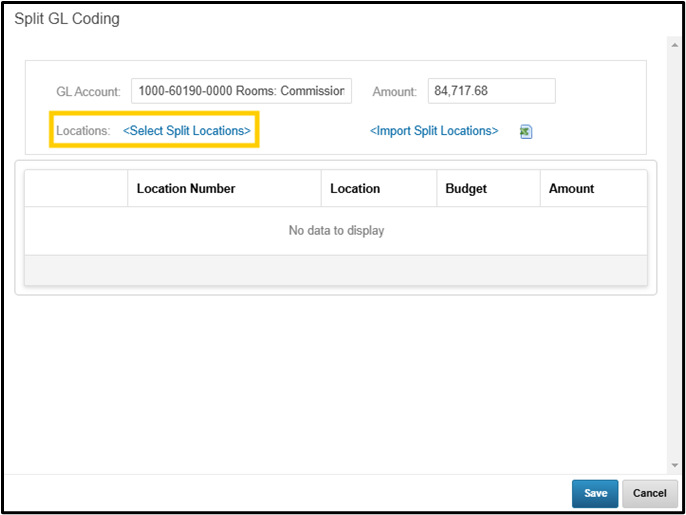
Click Select Split Locations to select the properties you wish to split the invoice amongst
-
Select the properties which need to be allocated against the current invoice by clicking the checkbox next to each property > Save
-
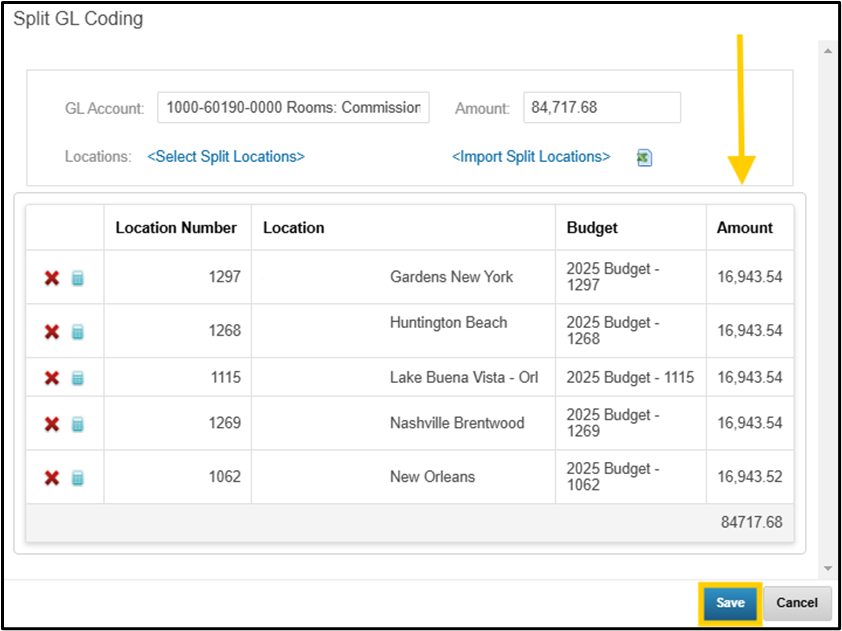
The system will automatically evenly split the invoice amongst the properties selected.
-
To adjust allocations per property, adjust the Amount field
-
Click Save
-
Click Submit to finalize the invoice entry
Invoice Entry – Import – Single Period, Multiple Properties
-
View > Accounting > Invoice Entry
-
Enter the invoice detail following the normal invoice entry process for a single, standalone invoice.
-
Scroll to the GL Summary portion of the Invoice Entry screen
-
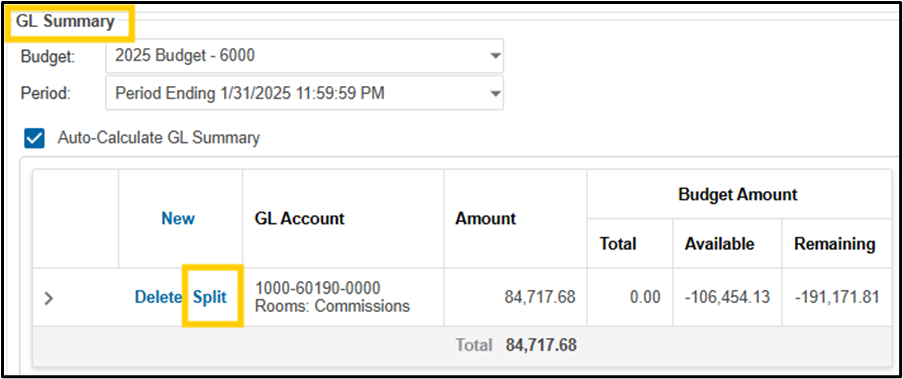
If all applicable settings are in place, a hyperlink will appear next to each GL in the GL Summary called Split
-
Click Split next to the GL needing to be split amongst multiple properties
-
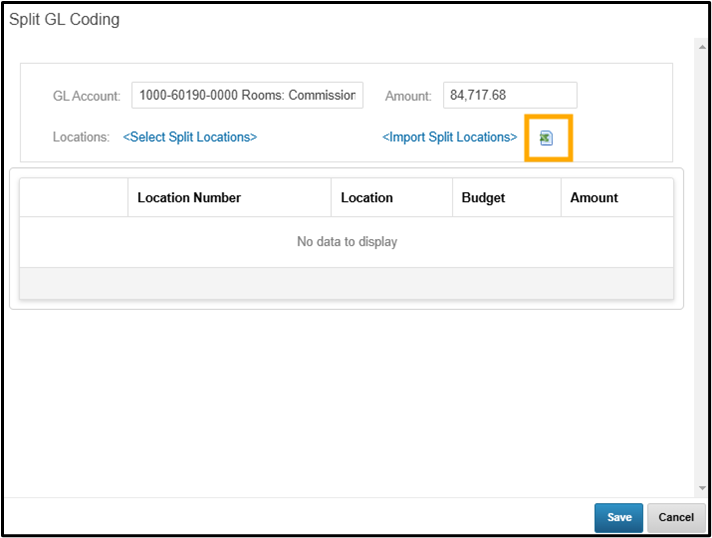
Click the Excel icon next to Import Split Locations to download the import template
-
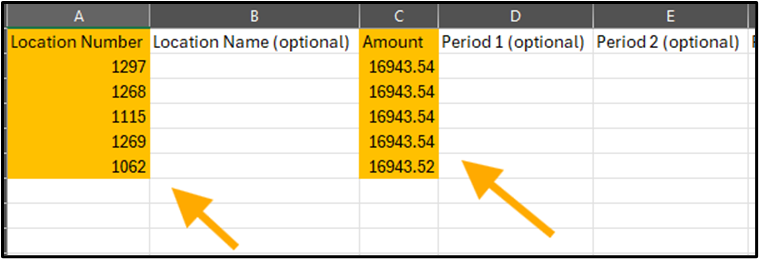
Fill out the template
-
To split an invoice in the current period, only fill out the Location Number and Amount columns.
-
-
Save the template
-
Click Import Split Locations
-
Browse for and select the Split Coding template previously filled out and saved
-
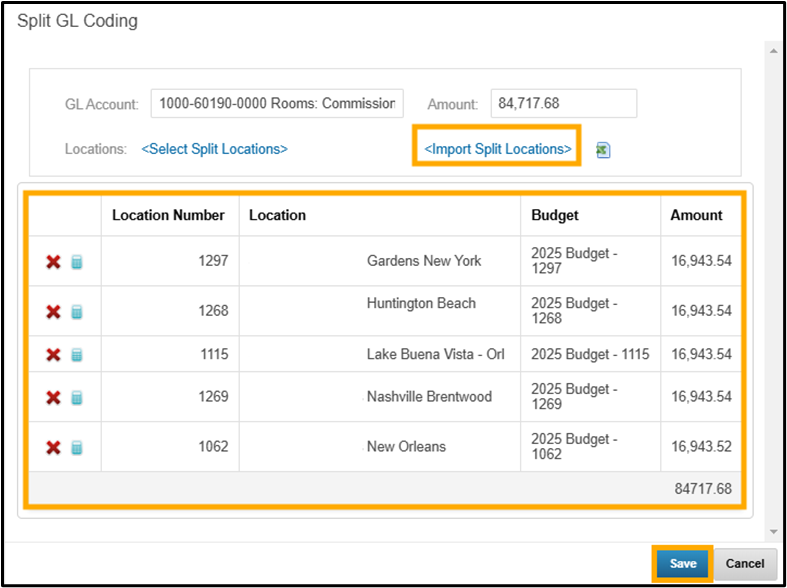
The data from the template will populate on the screen for review
-
Click Save
-
Click Submit to finalize the invoice entry