

If you locate an order on your receiving page that has been cancelled/does not need to move along in the workflow, you have the ability to ignore that order. Ignoring a PO puts it in a Cancelled status.
-
Select View > Receiving.
-
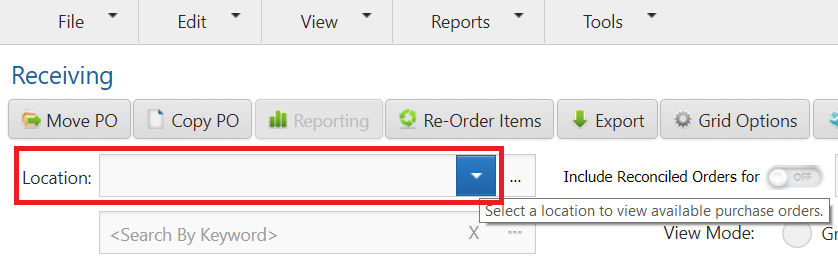
Select a Location if assigned to more than one.
-
Search for the purchase order you want to ignore.
-
Only orders in Submitted to Vendor, Shipped, Disputed, and Requisition status may be ignored.
-
-
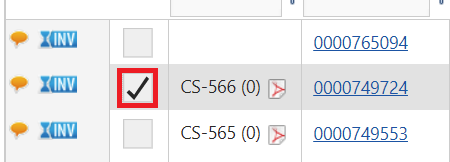
Select the check box next to the corresponding PO.
-
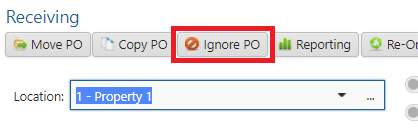
Select Ignore PO at the top of the grid.
-
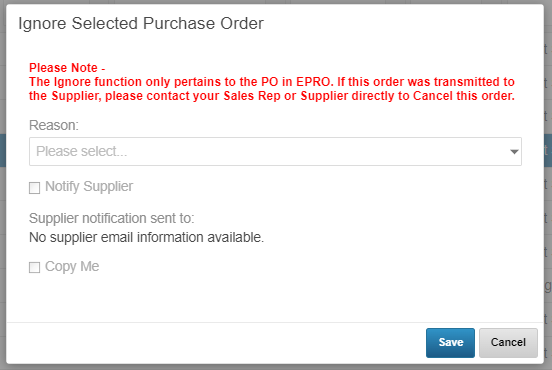
Select a Reason why this PO is being ignored.
-
If you select Other as your Reason, you are expected to enter a comment in the blank that appears
-
If the supplier corresponding to this order is configured to receive ignore notifications, an email address with be pre-populated in the Supplier notification sent to field
-
If the supplier is configured to receive notifications you can select Copy Me to send yourself a copy.
-
-
Click OK.
-
After an order is ignored the status changes to Cancelled and the order can be found by toggling the Include Reconciled Orders switch.
-
Cancellation Comments with the Reason for cancellation, who cancelled, and when the PO was cancelled can be found by clicking on the Confirmation Number hyperlink of the cancelled PO.
-
Note
If an electronic invoice comes in for an "ignored" order in Canceled status, that order status will change to Shipped then require receiving.