

Budget Periods can also be adjusted across all GL Accounts and Budget Periods uniformly using a constant factor based on dollar amount or percentage. Consider using this method when you wish to adjust the entire budget across the board and not just a few entries.
-
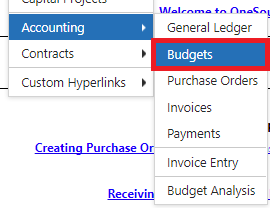
View > Accounting > Budgets.
-
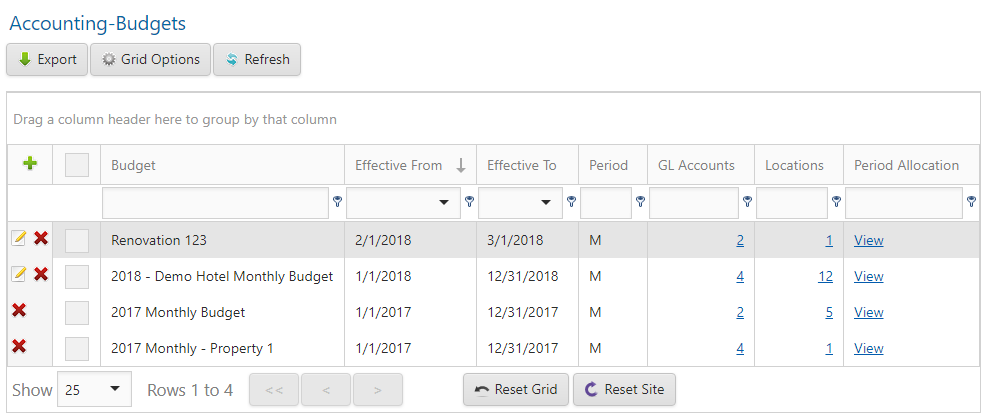
Click the View link in the far right column to access the Period Allocation/Location screen.
-
Click the Adjust Budget Amounts button on the button bar at the top of the list.

-
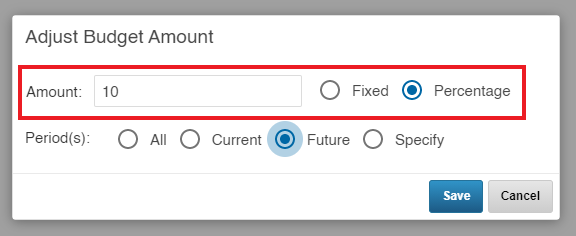
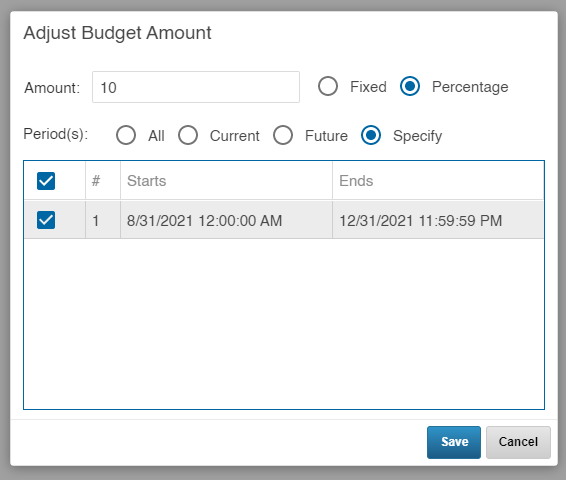
On the Adjust Budget Amount pop up, enter a number and select $ or % to indicated what that number represents.
-
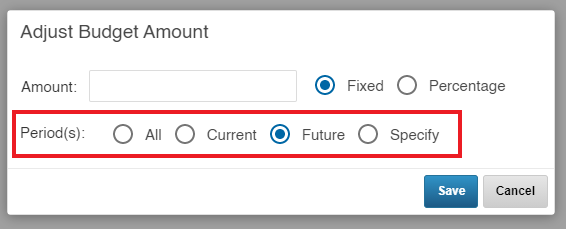
Select which Period the change should apply to by selecting a For option. Choices include All, Future, Current Periods, and Specify. Future Periods Only will be selected by default.
-
If you select Specify, select the applicable Budget Periods from the list that is generated after you select the option, as shown:
-
When finished, click the Save button. You may also click the Cancel button or anywhere outside of the Adjust Budget Amount window to avoid making any changes.